
Unlocking / Rooting the Motorola Atrix 4G
 Yesterday my new phone arrived: a Motorola Atrix 4G, which should be a real upgrade from my trusty old HTC Wildfire. I bought it for €239 in an iBood sale. Advantages were the big screen, dual-core processor and 4G support.
A possible contra was the doubt that any official Ice Cream Sandwich Android distribution would be released for the phone, but I wasn’t planning on sticking with the official Motorola updates anyway. (Update: There are experimental Ice Cream Sandwich builds available on XDA for the Atrix, woojay.)
I’ll say it again: the unnecessary customizations vendors are pushing onto Android phones is what really irritates me. Motorola came up with a network called MotoBlur. Sigh. Vendors, I don’t want to create an account on your private cloud and link my phone to your little part of the web forever. It’s a good thing that Google’s now requiring the default Holo theme for vendor phones with ICS.
Anyhow, here’s how it went. My phone came with Gingerbread 2.3.4, and a carrier firmware version 2.3.4-4.5.2A-74_OLE-25. You can check your phone’s information (which may be different!) in settings->about phone. Instructions behind the cut!
Keep in mind that you’re possibly voiding the warranty of your phone – although there are some users who had little problems getting a replacement device, even if they rooted the phone.
Unlocking: A first dissapointment
If you’re in a hurry, you can skip this section – this section describes a failed attempt, but might be interesting for you to identify your situation, and understand a bit more on how the device works.
Mind you: I bought the international version of the phone, so it wasn’t locked to a specific network, but the bootloader itself was locked – I had to unlock it in order to be able to install ClockworkMod Recovery (or any other custom recovery). Anyhow, I thought this would be a breeze, since Motorola released an unlockable bootloader with the Gingerbread update.
Unfortunately, the firmware version that came with my device (2.3.4-4.5.2A-74_OLE-25) did not support it, which I thought was weird. After some googling, it seems Motorola had the unlock in place for 2.3.3, but disabled it again for 2.3.4. Damn Flip-Floppers.
I used this fastboot distribution, but any fastboot install (from the Android SDK, for example) will do. When I connected to the phone via fastboot and did a fastboot oem unlock, I got this result:
... INFOOEM unlock is not implemented
OKAY [  0.001s]
If you get a similar result, you can be pretty sure your stock bootloader is not unlockable, and you’ll have to get a new bootloader installed before you can unlock the phone.
When I tried to install an official update (I thought it would give me a new bootloader) by registering with Motoblur and using the update functionality in the original distribution, it would download the update, but after that, the phone just kept rebooting and the screen said:
Boot failed 2
Starting RDS Protocol ...
Pulling the battery and powering it back up would boot me into Android again, which would then immediately restart to apply the update again. Great job Motorola, even your official updates make my device bootloop. Luckily, I could fix this annoying behaviour by doing a fastboot wipe of cache and user data (essentially resetting the phone to factory state):
fastboot -w
Unlocking: This time, we do it right
So yes, it was time to hit the XDA forums, looking for a way to unlock that damn bootloader. Since most of the guides and auto-unlock/auto-root tools were for AT&T phones, I had to find a way to do it for international phones – if you don’t have an international device: the instructions are basicly the same.
I found out it was time to get dirty with SBF’s, which are Single Binary Files. It’s Motorola’s proprietary file format, and a way of flashing new firmware. You can seriously brick your phone if you don’t know what you’re doing with this – double check the instructions in the relevant XDA threads if you’re unsure about something. This is an excellent starting point, although mainly oriented on AT&T users.
After a bit of research, I ended up following this thread, and did all the unlocking/rooting on a Windows XP SP3 32-bit installation. Any recent windows version should do, though. The RSDLite program is available for windows only, so I didn’t search for any Linux alternative.
Download the following:
- Motorola Android Drivers
- RSDLite: Google for RSD Lite 5.5 or more (here, for example).
- The IHOP/Bell SBF file from this thread
- A Fastboot package (for example, from here, or from the android SDK)
Here we go. As always: I’m not responsible for any damage, yada yada. We’re a bit beyond safe waters here, but as long as you follow the instructions carefully and don’t panic (NEVER pull the battery whilst flashing an SBF), it will be fine. Did I mention you should NEVER pull the battery whilst flashing an SBF? Good! Because you NEVER should.
- Make sure your phone is plugged in / fully charged, and if you’re using a laptop, make sure it is running on AC power too.
- Power off the phone.
- Power it back up again whilst holding the power and the volume up button, simultaneously.
- The screen will display: Starting RDS protocol in white text on a black background with the red Motorola logo.
- You can release the buttons now :)
- Run RSD Lite on your computer
- Click open and browse to the downloaded SBF file (which you have unzipped using Winzip, 7zip, or any other archive tool)
- Plug in your phone using the USB cable. In RSDLite, it should show up as “Model: NS Flash Olympus”, and should say “Connected”.
- If it doesn’t, the Motorola Drivers were not correctly installed and you cannot continue – reinstall them or reboot your pc.
- Hit start in RSD Lite. Don’t touch the phone, cable or computer. This process can take a while (about 2/3 minutes in my case)
- The phone will reboot automatically when finished.
- Open the windows command (start->run->type “cmd”) prompt and navigate to the place where you unzipped the fastboot package. It’s probably easiest if you unzip it in C:/fastboot. You can navigate to that directory by using (where cd stands for “Change Directory”):
- cd C:/fastboot
- If you don’t manage to get into the right directory, you can always use auto-completion (TAB) to make the cmd prompt help you to form the correct command.
- Power off the phone.
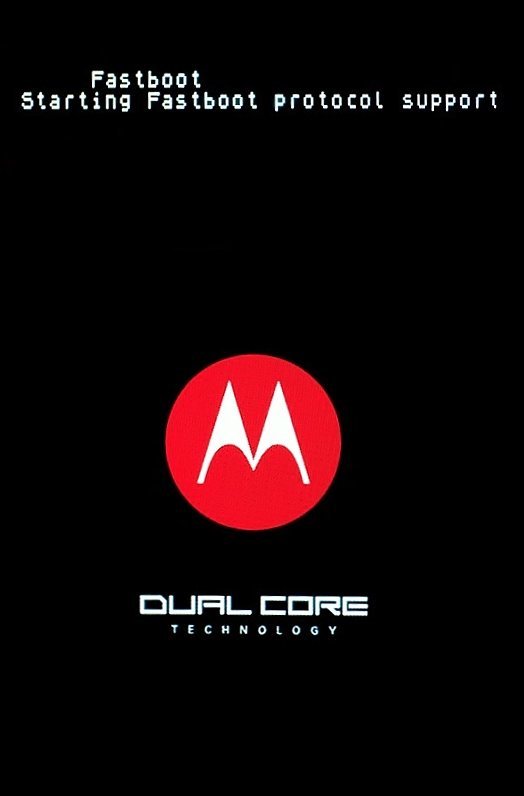
- Power it back up again whilst holding the power and volume down button (mind you: it’s the down button this time!)
- Hold it until you see “fastboot” on the screen
- Click the volume up button once, to start fastboot mode.
- In the windows command prompt, you can issue the following commands. if they don’t get recognized, you have not navigated to your fastboot directory correctly:
- fastboot oem unlock
- You’ll see a warning and a Device ID. Copy it, or write it down somewhere, then issue the following command, while inserting the device id at the indicated place:
- fastboot oem unlock <deviceid>
- You’ll get a “Congratulations, your phone is unlocked” message
- fastboot reboot
- Phone will reboot.
- fastboot oem unlock
If any of the above steps don’t work, you can verify the following:
- Have you installed the Motorola drivers correctly? (Might be required to reboot after you installed them)
- Are you using an RSDLite version > 5.x ? (This is a requirement)
- Did you press the correct button combinations? Can be confusing sometimes :)
Rooting
Woojay, unlocked! Now what’s next? If we root the Atrix, we can install a custom recovery to our newly unlocked bootloader and start flashing new ROM’s, as well as taking a complete backup of the current one.
There’s an excellent one-click-root method available here for 2.3.4 ROMs. This is the one I’ve used. Make sure your phone is in charge-only mode. I had to retry it a couple of times (2 / 3), but it did work eventually. Don’t worry, it’s pretty safe – the dangerous stuff was in the unlocking part ;) The Atrix is mentioned nowhere on the tool’s page, but it does work. An alternative is: this thread, but I haven’t tried that one.
The steps are trivial, it’s basicly : unzip the tool, connect the phone, make sure it’s in USB debugging mode (settings->applications->development settings->enable debugging mode) and run the tool.
Installing ClockWorkMod Recovery
After you’ve rooted and rebooted, it’s time to install a ClockWorkMod Recovery. This is an excellent tool. It’s a mini-os which you can start when the phone boots, which allows you to flash custom ROMS, take backups and much more!
- Go to the Android market and download ROM Manager
- Open ROM Manager, and use the top item: Flash ClockWorkMod Recovery
- Select Atrix from the list
- It will flash the default CWM Recovery now
- For Atrix, there’s a better recovery available: Romracer’s CWM
- Download your favorite flavor (it comes in several colors) it and place it on your sdcard.
- In ROM Manager, select Install Rom From SD-Card, and browse to the zip file you downloaded.
- The phone will reboot and replace the default recovery with the Romracer’s Recovery.
Installing a custom ROM (Cyanogenmod 7)
Yay, home-free! I’ll refer to this excellent guide for flashing Cyanogenmod 7: Another good resource for all things Atrix is this thread and the XDA forum itself, of course.
Have fun!